
Documents and expiries
Record passports, visas, Emirates IDs, licences and other papers with their expiry dates, renew them, and see what runs out next.
On this page
A document is anything with an expiry date you need to watch: a passport, a visa, an Emirates ID, a labour card, a driving licence, a vehicle registration, a trade licence. You record the date once. ValiCrew reminds the right people before it runs out and keeps it on the Expiries list until it is renewed. A scan is optional: the date is what is watched.
Admin, HR and Operations can add and renew documents. Read-only can see them. A custom role needs documents.manage to add, change or renew documents and documents.view to see them.
Add a document
- Go to Expiries and open the Documents tab, then choose New document. From a person's or a vehicle's record you can also open Documents and choose Add a document: the form opens already pointed at them.
- In Belongs to, choose the kind of record (for example Person, Vehicle, Driver, Company or Asset), then search for it by name, code or plate.
- Write the Title and choose the Category. Add the Issuing authority if you have it.
- Under Dates, set the Expiry date, and the Issue date if you know it.
- If you want, open Identifiers and type the Reference number. It is stored encrypted and never shown in lists.
- To attach the scan, add a PDF, JPG or PNG under Files. This needs connected file storage; see Connect file storage.
- Leave Reminder rule on Category default unless this one document needs its own schedule.
- Choose Create.
A category only fits the kind of record it applies to, so a vehicle category cannot be filed against a person.
Read the document list
The Documents tab groups your documents by urgency: Expired first, then Next 30 days, then Valid. Each row shows the days left above the date, and how many files are attached (None when there is no scan).
The switch above the list shows All, Expiring, Expired or No file. The search box finds a title, or a document by its exact reference number. Under Filters you can narrow by Category, Status, Belongs to, Emirates ID and an expiry From and Until date.
Select a row to open the document's page. Besides Details, it has a Reminders tab with every reminder the document raised, and a History tab with what happened to it: added, edited, renewed, reminder sent.
Renew a document
- Choose Renew on the document's row, or at the top of its page.
- Set the New expiry date. The quick picks beside it (+1 year, +2 years, +3 years) count from the current expiry date while it is still ahead, and from today once it has passed.
- If you have the new scan, add it as the Renewed copy.
- Choose Renew.
Open reminders for the old date close, and new ones are set for the new date. To renew several documents to the same date, tick them in the list and choose Renew from the actions for the ticked rows.
Always use Renew rather than typing a new date into the record. Renew is what closes the old reminders and records the renewal in History.
Add many documents at once
- On the Documents tab, choose Add many.
- Fill one row per document: Belongs to, Category, Expiry date and, if you want, the Reference number. The category becomes the document's title.
- Choose Add row for each extra document.
- Choose Create documents at the bottom. The button counts the rows it will create.
Each row is saved on its own. Rows that cannot be saved stay on screen under Kept for you to fix, with the reason, so you only correct those. For hundreds of documents, choose Use the workbench and import a spreadsheet instead; see Import your data.
Work from the Expiries page
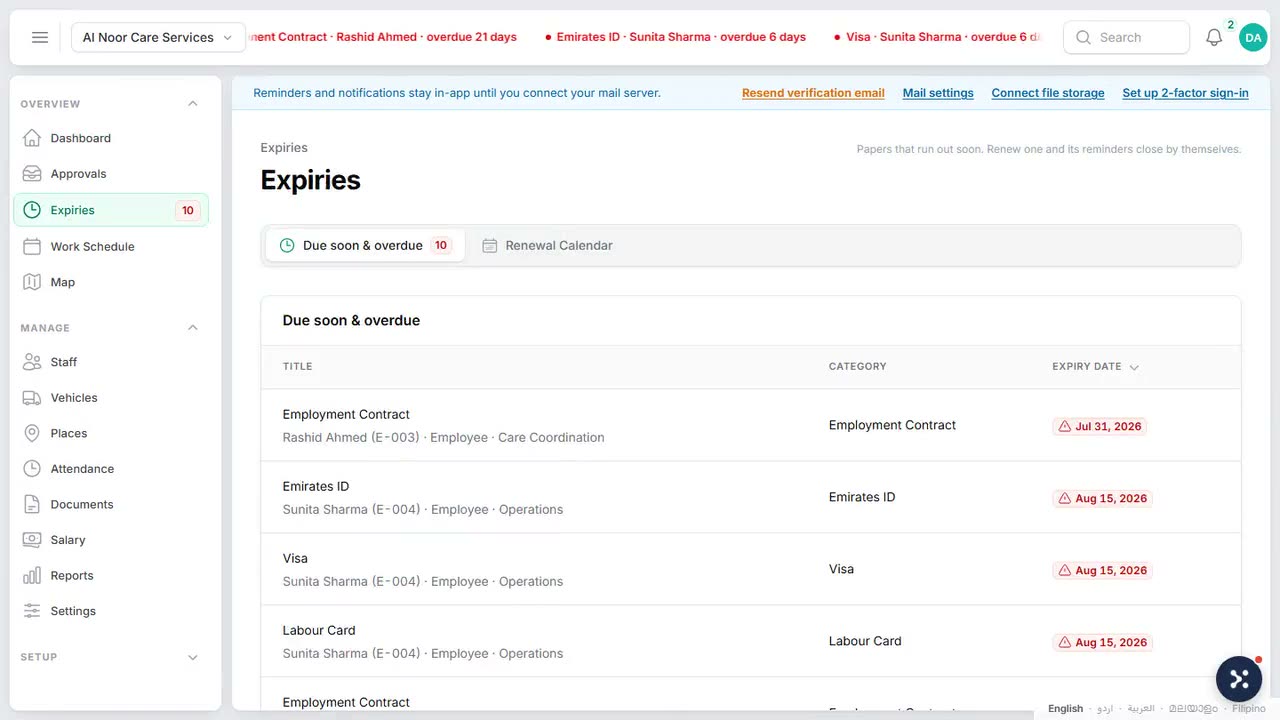
Go to Expiries. The first tab, Due soon & overdue, is one list of everything overdue or due in the next 30 days: documents, dates on assets and vehicle services. The red number in the menu counts the same list.
- Use All, Overdue or Next 30 days, the Kind filter and the search box to narrow it.
- Each row says how late or how soon it is, and whether anyone has been told (for example "2 sent" or "1 failed").
- Choose Renew on a document, or Log service on a vehicle service to open the vehicle.
- Tick several documents to renew them to one new date together.
Reminder settings at the top takes you to the settings that decide who is told and when; see Reminders.
Document categories
Categories such as Passport, Visa, Emirates ID and Labour Card are shared by every company in the workspace. To change them, go to Setup, choose Lists & catalogs, and under Documents choose Document Categories. You need workspace.manage.
Each category has Applies to (the kind of record it belongs on) and an optional Parent category. Under Credential gating, Blocks assignment makes an expired document of this type stop the person being given work, after the Grace period (days). On a category's page, Fields lists the details that type of document carries; fields that came with the system are locked. Use Stop using to retire a category without losing the documents filed under it.
 Watch the short filmStaying ahead of document expiries