
Schedule and rosters
Plan the week's shifts on the schedule calendar, check cover per role, then publish the roster so workers see their shifts in the app.
On this page
The schedule is where you plan the work: every shift of the week, who is on it, what still needs someone, and who is off. A roster is the same work for one site, or for your client and field work, over a set period. Workers see nothing until you publish the roster, and every publish after the first one is a new version.
Opening Work Schedule and the rosters needs schedule.view, which every built-in role has. Planning (adding and generating shifts, assigning people, publishing and locking a roster) needs schedule.manage (Admin, HR and Operations). Recording clock-ins and absences on a shift needs people.manage (Admin and HR).
Read the schedule
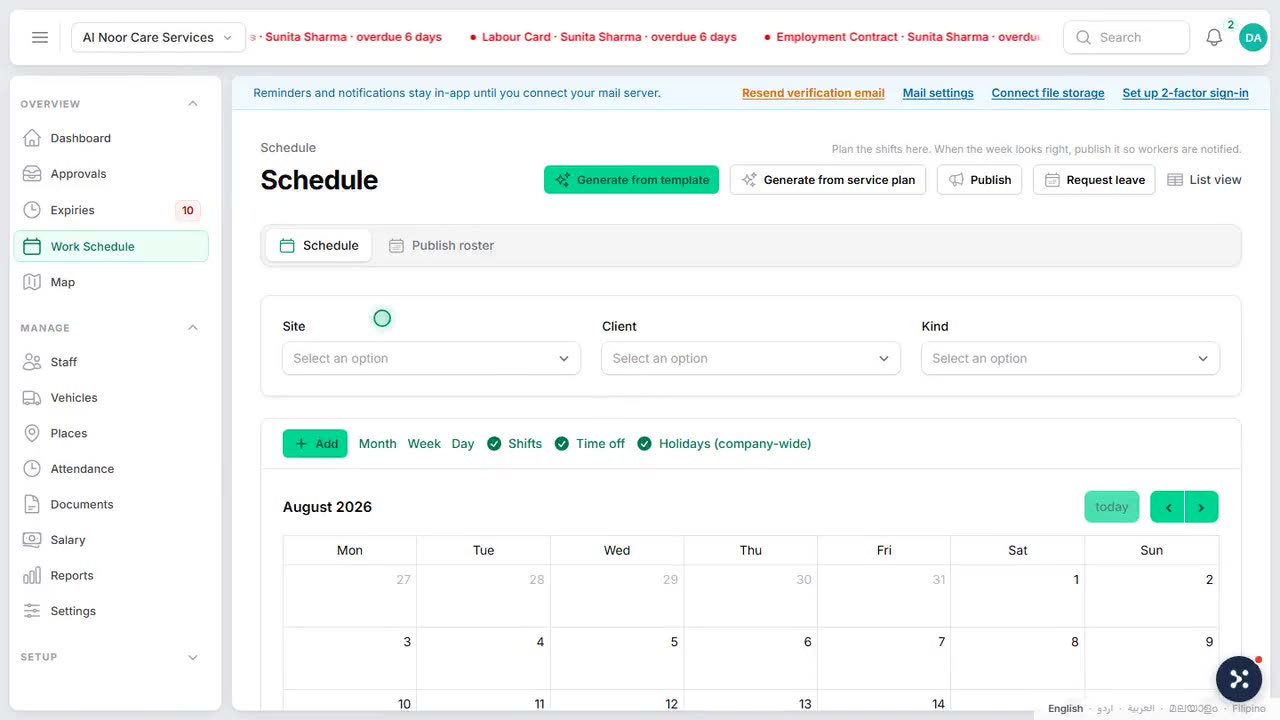
Go to Work Schedule and choose Schedule. The calendar opens on this week.
- Narrow it with Site, Client and Kind at the top.
- Switch between Month, Week and Day, or choose By person to see each person's week with their Hours. Tick Everyone there to plan from the whole team, not only the people already on a shift.
- Under the calendar, turn Shifts, Time off and Holidays (company-wide) on or off.
The colours follow the legend: Assigned, Needs someone, Transport, Leave asked and Leave approved. Leave that is only asked for is drawn apart from approved leave, so you can see who may be away before you pick them. The foot of the calendar says how many shifts still need someone this week and how many claims are waiting.
To add work, click an empty slot, or choose New and then New shift, New driving duty or Request leave. See Shifts and templates.
Fill a shift from the calendar
Click a shift to open it beside the calendar.
- Under Who can take it, the best fits come first, each with their hours that week and the result of the rule check. Choose Someone else to pick from everyone, ranked the same way.
- If the person you pick brings warnings, write an Override reason. A person a rule blocks cannot be assigned.
- Change Time and notes if needed: Starts, Lasts, Unpaid break (minutes) and Notes.
- Choose the button at the bottom. It reads Save, or names the person you picked.
Claims waiting on the shift are named at the top. When your choice fills the shift, those claims close. The same panel has Cancel shift and Shift page, and for a transport shift Assign vehicle or Open duty.
Create a roster
- Go to Work Schedule and choose Publish roster.
- Choose New roster at the top of the list.
- Under Cover window, pick the Scope: one site, or Clients & field work for the shifts at no site of your own.
- Set Starts on and Ends on. The suggested length comes from Roster period (days) in Group policies.
- Choose Create. The roster board opens.
The list shows This week and next or Earlier, with what each roster Covers, its Dates, how it is Filled and its Status. A roster still marked Draft, never published means workers see none of it.
Publish a roster
Open the roster with Review and publish or Open board, or use the publish button in the header of Schedule: it opens the soonest roster with something to send.
The board shows Coverage by role: for each day, the people on shift out of the people needed, marked Filled, Short or Over. Click a day to see its shifts and choose Assign on an open slot.
Beside it, Before you publish shows what publishing would do:
| Part | What it means |
|---|---|
| Rule breaks | A shift breaks a hard rule. Choose Fix on each one; publishing stays switched off until none are left. |
| Warnings | They go out with the reason someone gave. |
| Open slots | They stay open, and workers who fit can claim them in the app once the roster is out. |
| Who is told | Exactly who gets a message. |
When it is ready, choose Publish roster (the first time) or the publish button with the next version number, then Confirm. On the first publish, everyone on the roster gets it in the app. After that, only the people whose shifts changed get a "your shifts changed" notice; everyone else keeps their version as it is. Versions lists the recent publishes, with who made each one.
Lock a roster
When the cut-off passes, open More actions on the board and choose Lock, then Confirm. A roster can be locked only once it is published. After that, publishing again asks for a Change reason, which is kept in the audit log. Change dates in the same menu edits the cover window.
 Watch the short filmBuilding the staff schedule