
Places and map
Add your sites and the clients you serve at their own premises, plan clients' recurring visits, and see every place's cover on the map.
On this page
Places are where the work happens. A site is a place your company staffs: a building, a ward, a store, your own depot. A client is a customer served at their own premises: a household, a villa, an office, a retail unit. The map shows every site and client, coloured by how well the day is covered.
Opening Places and Map needs places.view, which every built-in role has. Adding or changing sites and clients, and changing a client's plan from a date, needs places.manage (Admin, HR and Operations); adding a shift from the map needs schedule.manage. A client's journeys need journeys.view and places.manage, and starting one needs journeys.manage.
Add a site
- Go to Places and choose Sites, then New site.
- Under Details, give the Name, a Code, the Cost centre and the Status.
- Under Location, write the Address and drop the pin on the map, or type the Latitude and Longitude. Leave the Timezone blank to use the company's.
- Under Operating hours, switch on each day the site is covered and set Open and Close. Copy to all days copies one day's hours to the other covered days.
- Choose Create.
The pin is where clock-ins are checked, within the radius set in Group policies; without a pin, clock-ins there cannot be checked. A day left off is Not covered, and generated shifts never cover it.
Run a site
A site's page shows This week, who is Based here, the Shift patterns it runs and its Next roster, with the tabs Teams, People, Opening hours and Service hours. From the header you can choose Open on the map, New shift, or Edit details in the menu.
The generate button on the Overview makes next week's shifts from the templates this site already runs, each on its own days. Shifts already there are kept. A person's home site is set on their own record, not here.
Add a client
- Go to Places and choose Clients, then New client.
- Under Details, give the name and the Status.
- Under Contact (encrypted), add the Phone, Email address and Address. Under Location, drop the pin.
- Under Preferences, set a Preferred gender or Preferred language if the client asks for one. Add the Contract reference, Contract start and Contract end.
- Choose Create.
Preferences only rank who should go: someone who does not match is shown with a warning, never refused. Under Worker preferences, mark a person as Preferred or Blocked for this client.
Plan a client's visits
A service plan is the recurring work a client needs. On the client's page, choose New plan, or open Service plans.
- Pattern type Slots: visits on set weekdays, or every so many days, weeks, months, quarters or years, each with its own start time and length.
- Pattern type Cover window: a window every day, divided by a Split into shifts, such as two twelves.
Set the Designation, Workers per shift, Starts on and Ends on. To turn plans into visits, choose Generate shifts and then Generate from service plan on the schedule, or Plan visits on the map. Running it again only adds what is missing.
To change a plan from a date, choose Change from a date on the plan and set Change from. The plan as it is ends the day before. Open visits it already put on the schedule from then are cancelled; visits with someone on them stay. New visit adds a one-off visit, and Visits lists them all.
Use the map
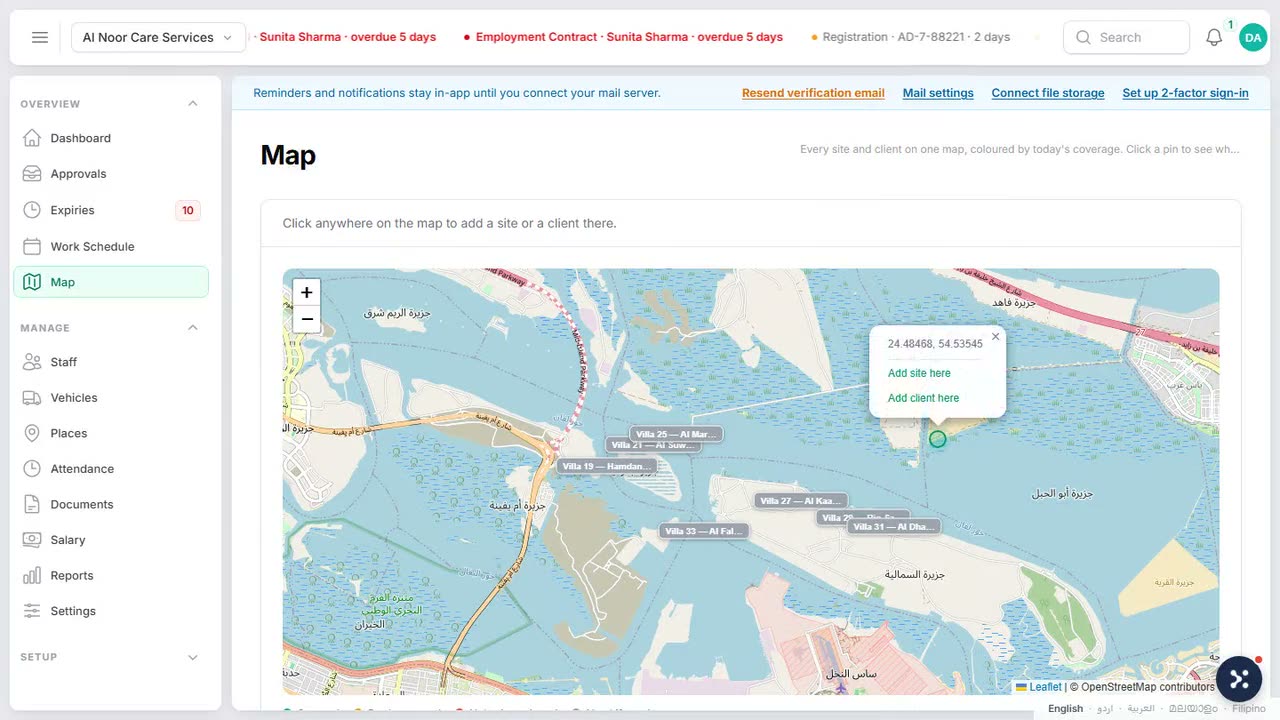
Go to Map. Choose Today, Tomorrow or Pick a date, then show All places or only the Gaps. Tick Sites and Clients, or Search places.
| Colour | What it means |
|---|---|
| Covered | Everyone needed is assigned. |
| Partly covered | Some slots are still open. |
| Nobody assigned | Shifts with nobody on them. |
| No shifts today | Nothing planned that day. |
Pick a place to see who is there and which slots are open, with Assign on each. Its buttons add a New shift, Repeat weekly for a site, Plan visits for a client, or Open place. Places with no pin are listed under Places without a map pin, with Set location.
Click anywhere on the map to Add a place here: choose the Kind of place, fill it in and choose Create site or Create client. For a new site, Set up its weekly shifts next opens the shift generator with the site filled in.
Journeys for a client
A client's page has a Journeys tab. A journey is a step-by-step checklist from one of your Journey templates, such as signing an agreement or handing over an asset. Choose Start journey to begin one for this client; the tab lists the journeys already running or done, and each opens on the client journeys board.
 Watch the short filmScheduling straight from the map