
PRO desk
Give your PRO a separate desk for government renewals, approve and complete their renewal cases, and set up government pack templates.
On this page
The PRO desk is a separate, simpler screen for the person who handles your government services (your PRO). They see the employee, vehicle and company documents that are due in the companies you give them, open a renewal case, send it to you with the government reference and a receipt, and create document packs for a government visit. They never see payroll, settings, clients or anything else in the workspace.
Admin can make someone a PRO; a custom role needs pro.manage. Admin and HR approve and complete renewal cases (pro.renewals.approve). Government pack templates need workspace.manage.
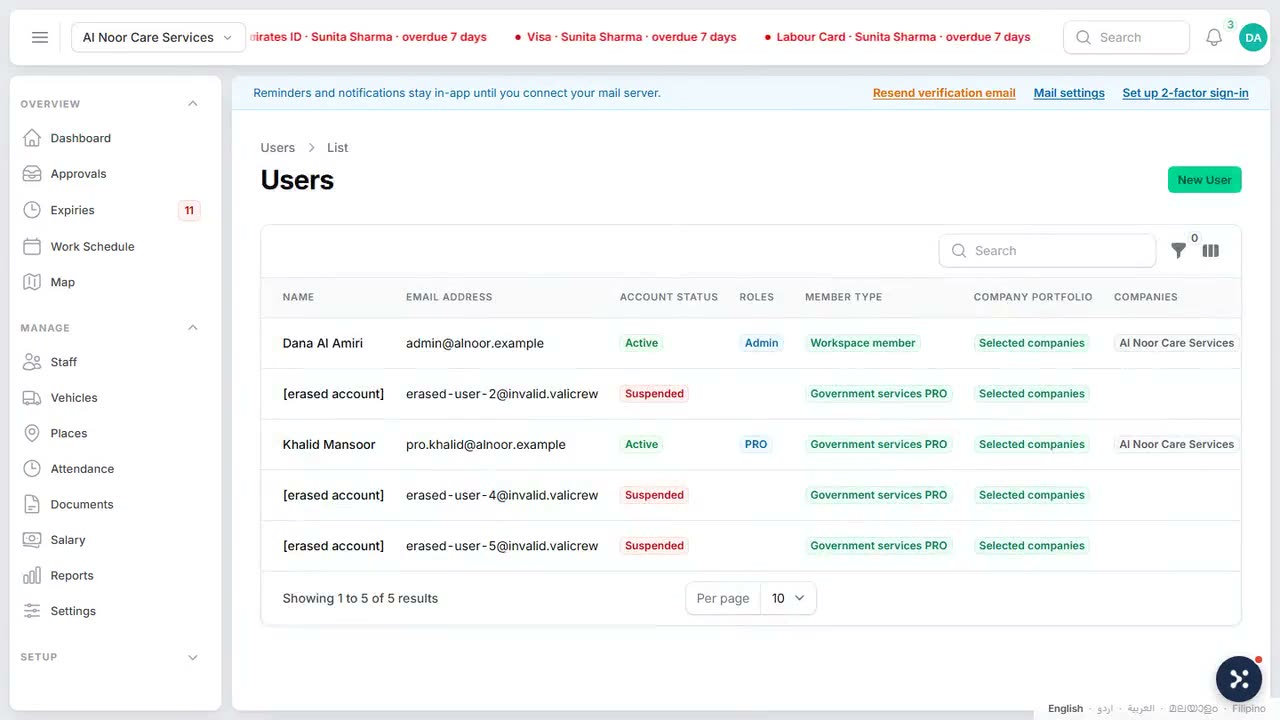
Give someone PRO access
- Go to Settings, choose Users and access and choose Invite someone.
- Enter their Name and Email address.
- In Member type, choose Government services PRO.
- In Company portfolio, choose Selected companies and tick the Companies, or choose All active companies, including future companies.
- Choose Create.
The PRO gets an invitation to set a password and an authenticator app. They sign in at the PRO desk (your workspace address followed by /pro), always with an authenticator code, and cannot open the workspace itself. For inviting people in general, see Invite your team.
What the PRO does on the desk
The desk has four pages: Today, Due documents, Renewal cases and Government packs. With All companies chosen, the PRO can read across their companies; to change anything they choose one company first.
- In Due documents, expired documents come first, then the next to expire. The PRO chooses Start renewal case on a document and can add a Purpose (optional).
- When the renewal is filed, the PRO opens the case, enters the Government reference, adds an Evidence file (a photo of the receipt or a PDF) and chooses Send for approval.
- The case then waits for HR or an Admin.
A case moves through these statuses:
| Status | What it means |
|---|---|
| Open | Started, not yet sent. |
| Waiting for approval | Sent to HR or an Admin. |
| Needs correction | Sent back with a note; the PRO corrects it and sends it again. |
| Approved | Accepted; waiting for the renewed document's new expiry. |
| Completed | The document is renewed. |
Evidence can only be sent once your workspace has connected file storage; see Connect file storage. The evidence file is saved on the document itself. Each PRO also receives the urgent reminder emails for the employee, vehicle and company documents of their companies.
Approve and complete a renewal case
- Go to Approvals and open PRO renewals. Use Open, Returned or Completed to switch lists.
- Pick a case. You see the document, its current expiry, the government reference, the purpose and the Evidence file.
- Choose Approve case, or write a Review note and choose Return for correction. Returning always needs the note, and the PRO sees it on the desk.
- When the renewed document arrives, open the approved case, choose Complete case, set the New expiry date and confirm.
Completing the case renews the document: its open reminders close, and the expiry date and history are updated.
Set up government pack templates
A government pack is a document bundle the PRO creates for one company, for example for a visa renewal visit. Go to Setup, choose Lists & catalogs, and under Documents choose Government pack templates.
Four packs are Built in and cannot be changed: Employee list, Employee document register, Vehicle and Mulkiya register and Company compliance register. To add your own:
- Choose New government pack template and enter its name.
- Under Pack sections, give each section a Title and an optional Note, choose the Data to include (Employees, Employee documents, Vehicle documents or Company documents) and tick the Fields to include.
- Choose Add section for more sections.
- Turn on Official sensitive pack only for an approved official pack. The PRO must then confirm the company and the official purpose before it is created.
- Choose Create.
To retire a template you made, choose Stop using. On Government packs, the PRO picks a template, writes the Official purpose, chooses the Format (PDF, Excel or a ZIP of source files where the pack allows it) and chooses Create pack. Every pack is recorded with the PRO's name, the time and the purpose.
 Watch the short filmA desk for your PRO